๐Ÿงช SparkCopilot โ€” Try the demo (3 quick steps)

1๏ธโƒฃ Install Tailscale

QR: install Tailscale

Scan with your phone's normal Camera app, then install the Tailscale app (it auto-detects iOS/Android/Mac/Windows/Linux).

https://tailscale.com/download

โฌ‡๏ธ Moving from step 1 to step 2 โ€” read this first:
  1. Open the Tailscale app you just installed.
  2. Do NOT tap the big "Log in" button (that's for personal Google/ Microsoft/passkey accounts โ€” skip it entirely).
  3. Go to Settings (top-right corner) โ†’ Accounts โ†’ tap the โ‹ฎ vertical dots (or โ˜ฐ horizontal bars) menu โ†’ "Use an auth key".
  4. Paste the key from step 2 below, then confirm.
  5. Confirmation of success: your device will show up as "Connected" in the app, and will appear alongside the "sparkcopilot" machine under the owner's Tailscale account.

2๏ธโƒฃ Join key

QR: join key

๐Ÿ“ท Scan this with your phone's normal Camera app, not inside Tailscale โ€” it will show a "Copy" action on the decoded text. Or just tap Copy below.

tskey-auth-kZHomuc9zQ11CNTRL-NB2NQrvtpnf2SvzdXa7ZnfxdsSro1yZu

โ†‘ one continuous key, no spaces/line breaks โ€” if it looks like it's wrapped across several lines above, that's just the box being narrow; tap Copy to get the exact, correct text every time.

๐Ÿ’ป On a laptop or desktop instead? Pick your OS
Linux/Mac:
sudo tailscale up --authkey=tskey-auth-kZHomuc9zQ11CNTRL-NB2NQrvtpnf2SvzdXa7ZnfxdsSro1yZu
Windows:
tailscale up --authkey=tskey-auth-kZHomuc9zQ11CNTRL-NB2NQrvtpnf2SvzdXa7ZnfxdsSro1yZu

Linux/macOS: paste into a Terminal (Tailscale's CLI is installed automatically with the app). Windows: open PowerShell "as Administrator", paste, press Enter. Either way, the device joins automatically tagged as a tester โ€” nothing else to configure.

๐Ÿข On a work/corporate or school laptop? Tailscale needs outbound UDP (ideally) or its HTTPS-relay fallback โ€” some corporate firewalls block this entirely, and Tailscale will just hang at "connecting" with no clear error. If that happens, try a personal device or a different network (e.g. your phone's hotspot) instead of troubleshooting the corporate network itself.

Valid until: 2026-11-30T23:27:30+01:00

โฌ‡๏ธ

3๏ธโƒฃ Start the demo

QR: start the demo

Only reachable after step 2. Register, wait for approval, then chat!
http://sparkcopilot.tail280ac5.ts.net:3000/spark-api/demo/

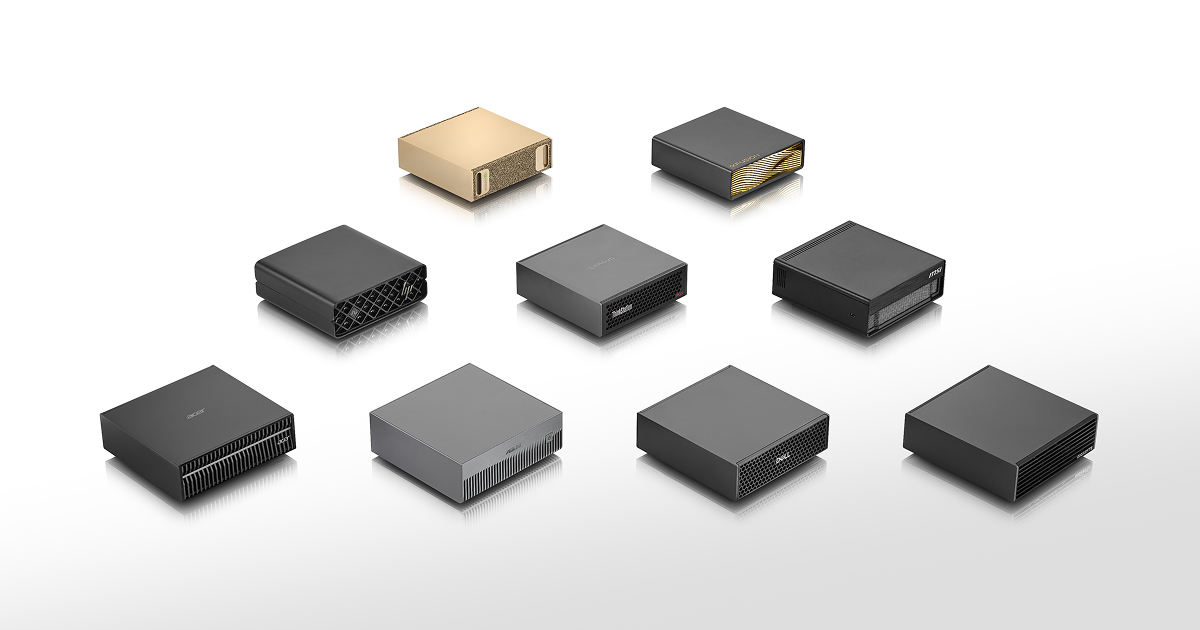
NVIDIA DGX Spark device

This is where SparkCopilot actually runs: an NVIDIA DGX Spark, a desktop-sized personal AI supercomputer. (Photo © NVIDIA, from nvidia.com/en-us/products/workstations/dgx-spark/ โ€” shown here only to illustrate the hardware, not used for any commercial purpose.)

โ“ Frequently asked questions
Scanning QR 3 doesn't open anything / times out

You probably haven't finished step 2 yet (or Tailscale is still connecting). The demo address is on this machine's private Tailscale network โ€” it's unreachable until your device has actually joined. Open the Tailscale app and confirm it shows "Connected" first.

Nothing happens when I tap the QR 2 link on my phone

That's expected โ€” QR 2 is not a website link, it's plain text (the join key). Use your phone's normal Camera app to scan it (not a QR scanner built into another app); it should offer a "Copy" action on the decoded text instead of opening a page. Then follow the step 2 instructions to paste it into Tailscale.

I'm on a work/school/corporate network and it won't connect

Some corporate firewalls block the connections Tailscale needs. Try your phone's own mobile data/hotspot instead, or a personal/home network โ€” that's usually the fastest fix.

How long will I be waiting to get approved?

The status page (shown right after you register in step 3) shows you where you are in line and, if you're one of the next few, a rough time estimate. No action needed on your end โ€” just leave that tab open or check back.

Do I need to create an account or install anything besides Tailscale?

No separate account signup for Tailscale itself (you're using a shared join key, not a personal login). Once your registration is approved on the demo page, you'll get a one-time email/password to sign into the chat โ€” that's the only account involved.

How do I leave / clean up when I'm done testing?

Just type a message like "I'm done testing" in the chat โ€” the system detects it, ends your session gracefully, and will clean up your temporary access on its own. You don't need to manually uninstall Tailscale unless you want to (Settings โ†’ uninstall, same as any app).

Is my chat data private?

During an active testing round, conversations may be reviewed by the SparkCopilot owner to find and fix bugs โ€” you'll see a notice about this when the testing round is active. Don't share anything you wouldn't want reviewed for that purpose.

Credits to: Stefano Moriconi